How to use the EUlabel control panel
This guide explains, step by step, how to create the digital label of a wine: ingredients, nutrition values, packaging disposal and certifications, up to the QR code you print on the bottle.
Getting started
The control panel opens at https://dashboard.eu-label.it on a computer, tablet or phone, with nothing to install. Changes you save go online straight away: anyone who scans the QR code always sees the latest version of the label.
Logging in
- Open dashboard.eu-label.it. The Winery reserved area page opens.
- Enter the Email and Password of your account.
- Press Log in. You arrive at your wine list.
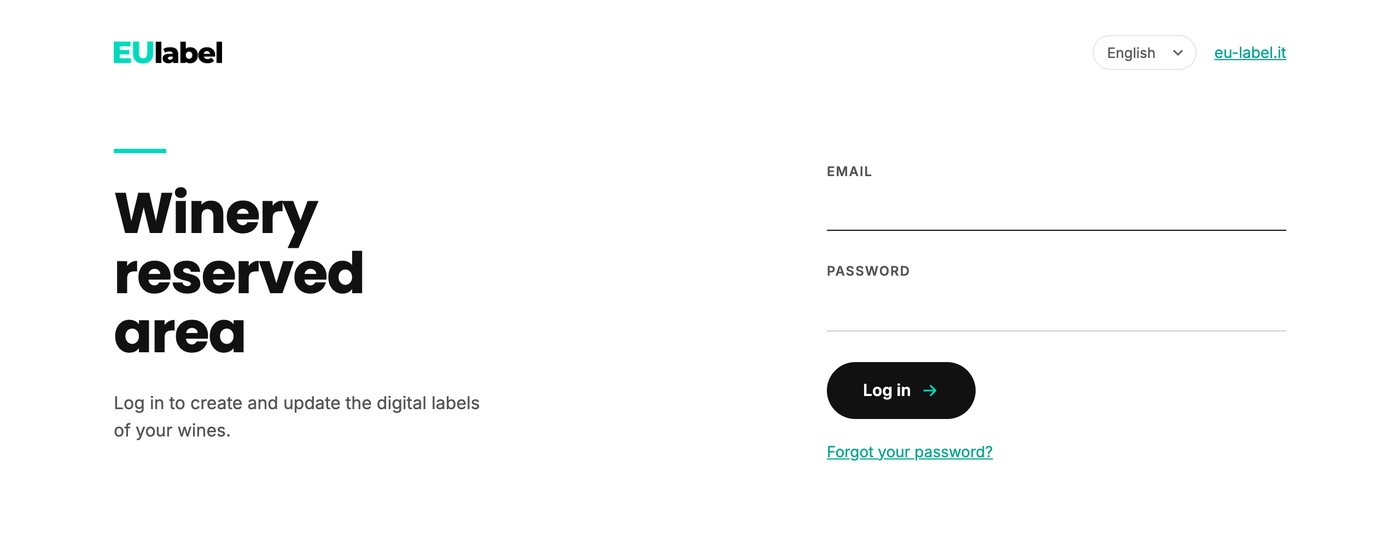
After too many wrong attempts the panel blocks logging in for a few seconds and tells you how long to wait.
Forgotten password
- On the login page press Forgot your password?
- Enter the email you log in with and press Send the link.
- Open the email you receive and follow the link to choose a new password. The link is valid for one hour: if it expires, ask for another.
Panel language
The panel is available in Italian, English, French, German and Spanish. Change the language from the menu at the top right, also on the login page. Your choice is saved for the winery, and EUlabel emails (welcome, password, reminders, order confirmations) arrive in the same language.
The panel language does not change the label language: the public label shows itself in the language of the reader's phone.
The menu
| Item | What it is for |
|---|---|
| Wines | The wine list, creating new wines, each wine's sheet and the QR code. |
| Winery | The name and address shown at the top of the label, your contacts and the label colour. |
| Licence | Your current plan, how many labels are left, the expiry date, renewal and orders. |
| Support | This manual in your language, the PDFs to download and the form to write to us. |
| Log out | Ends the session. Always use it on a shared computer. |
Free trial and purchase
There are two ways to open an account, both from the eu-label.it website.
Free trial
- Fill in the Free trial form on the website: winery name, your name, email and country.
- You receive a welcome email with a link to choose your password. The link is valid for 7 days.
- The trial lasts 30 days and lets you create the label of 1 wine, with every feature of the panel.
- We email you 5 days before the trial ends and the day after it expires.
To continue after the trial, choose a plan on the Licence page (see chapter 8). The plan starts that day, lasts 12 months, and the QR code you already printed stays the same.
Direct purchase
If you already know which plan you need, you can buy it straight away without the trial, from the buy button on the website.
- Choose the plan (the number of labels) and fill in the winery name, your name, email and country. That email is the one you will use to log in.
- Tick that you have read the privacy notice and press Continue to payment.
- Choose how to pay: card, Satispay or bank transfer (see How to pay).
- You also receive an email to choose your password, which you need for later logins.
Prices are final, with no VAT added (Italian flat-rate scheme). If the email is already registered, no second account is created: you receive the link to set the password and log in to the account you already have.
The wine list
This is the first page after logging in. At the top, next to the Wines title, you find the number of wines and a summary of your licence, for example “Intermedio: 4 of 20 labels · expires on 28/10/2027”. Click it to open the Licence page.
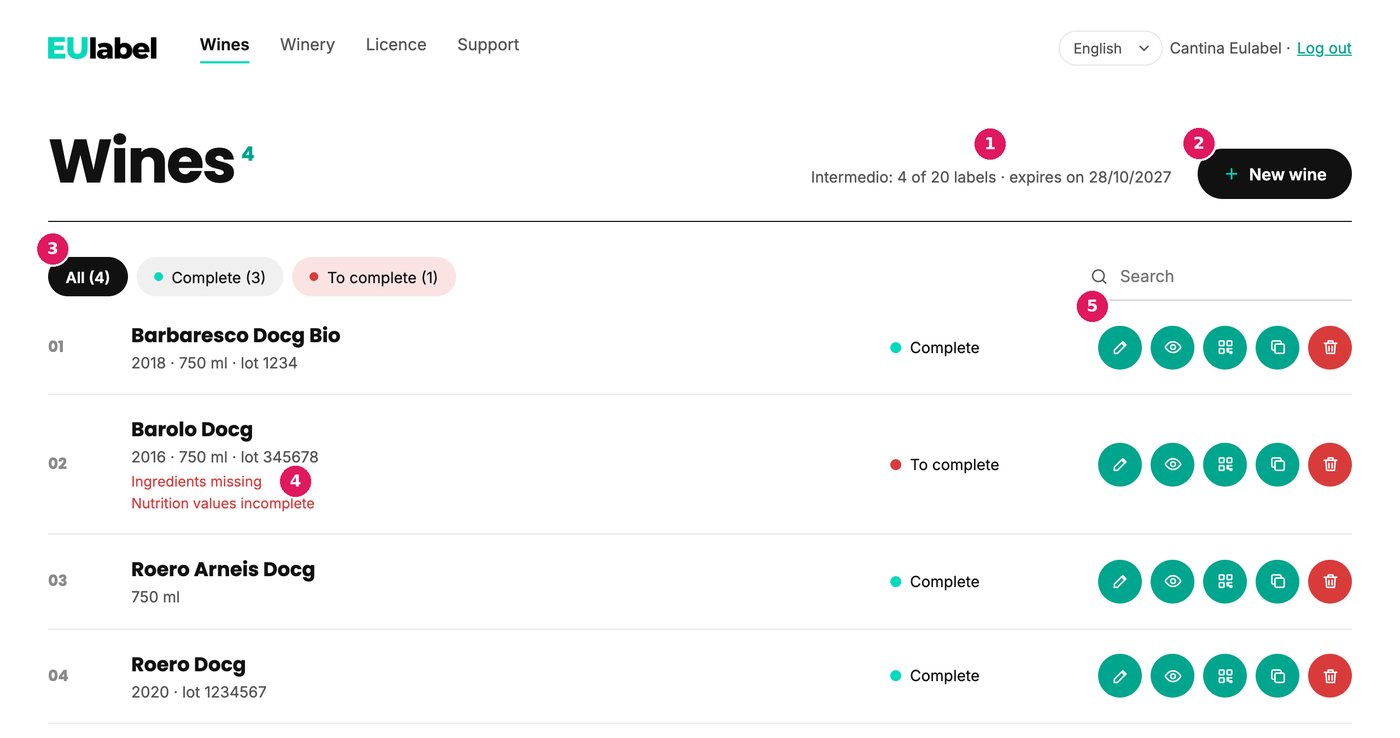
- Licence summary: labels used and expiry date.
- New wine.
- Filters by status.
- What a wine still needs.
- Actions: edit, preview, QR code, duplicate, delete.
Creating a new wine
- Press + New wine.
- Enter the Wine name. If you like, add Vintage year, Volume (ml) (already set to 750) and Grape varieties straight away.
- Press Create wine. The wine sheet opens, where you fill in the rest and save.
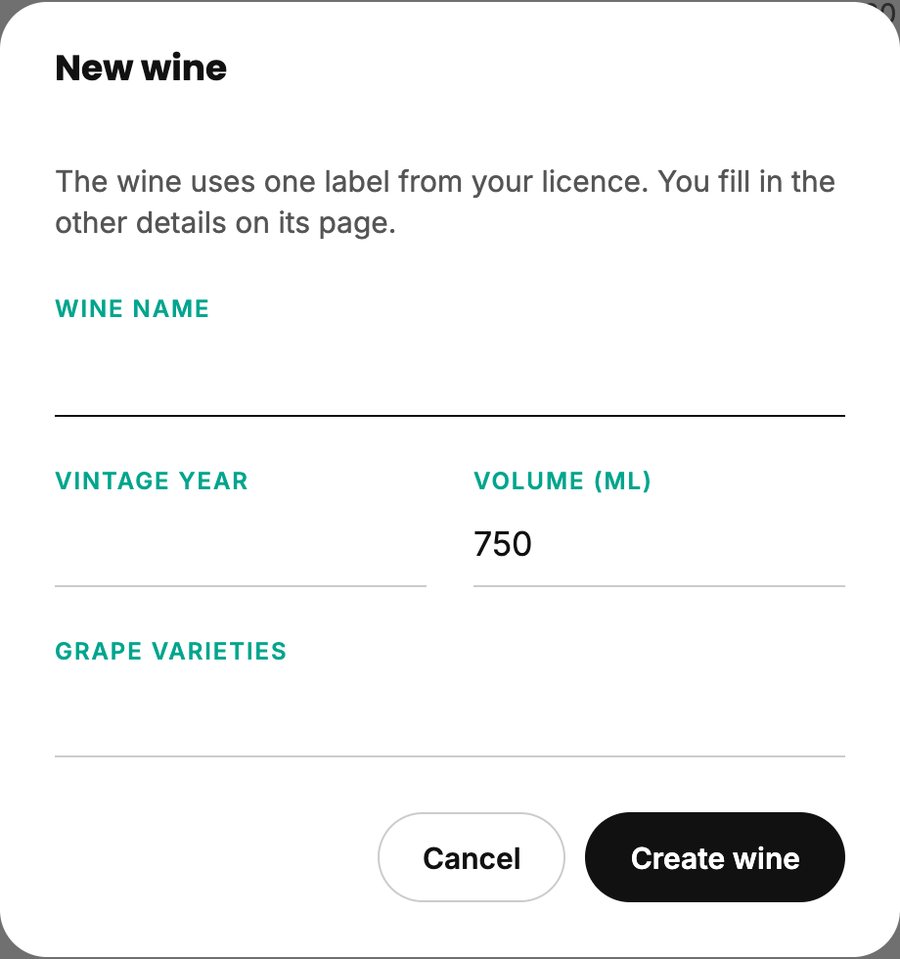
Each wine uses one label of your licence. If the licence has expired or the labels have run out, the New wine button does not appear: you need a renewal or a bigger plan.
Wine status
Every wine is either Complete or To complete. It is complete when it has a name, at least one ingredient and the energy values (kcal and kJ). Under the name of a wine to complete you see what is missing, for example “Ingredients missing”.
A wine to complete is already online too: the status only reminds you what is missing to meet the labelling rules.
Searching and filtering
Use the All, Complete and To complete buttons to filter the list by status. The Search field finds a wine as you type.
The actions for each wine
| Icon | What it does |
|---|---|
| Edit (pencil) | Opens the wine sheet. You can also click the name. |
| Preview (eye) | Shows the public label inside a phone. From there you can open it in a new tab. |
| QR code | Shows the QR code and downloads it as PNG, SVG or PDF (see chapter 6). |
| Duplicate | Creates a new wine with the same data, including photo, document and certifications. Useful for a new vintage or another bottle size. The copy is a separate wine with its own QR code and uses one label of your licence. The word “copia” appears in its internal reference. |
| Delete (bin) | Deletes the wine after you confirm. The label becomes available again in your licence. |
The wine sheet
The sheet is split into numbered sections. On the right is the Live preview: a phone showing the label as the consumer will see it. It updates as you type, before you even save.
Under the preview, the Data status marks with a dot what is fine and what is missing: wine name and details, ingredients, nutrition values and packaging disposal. Disposal is not required for the “Complete” status, but without it the label does not show that part.
At the bottom of the page is the save bar. Until you save, it says there are unsaved changes. Press Save changes: the online label updates immediately. If you try to leave the page without saving, the browser warns you.
The bottle photo, the disposal document and the certification logos upload as soon as you choose them. Everything else is saved only with the button.
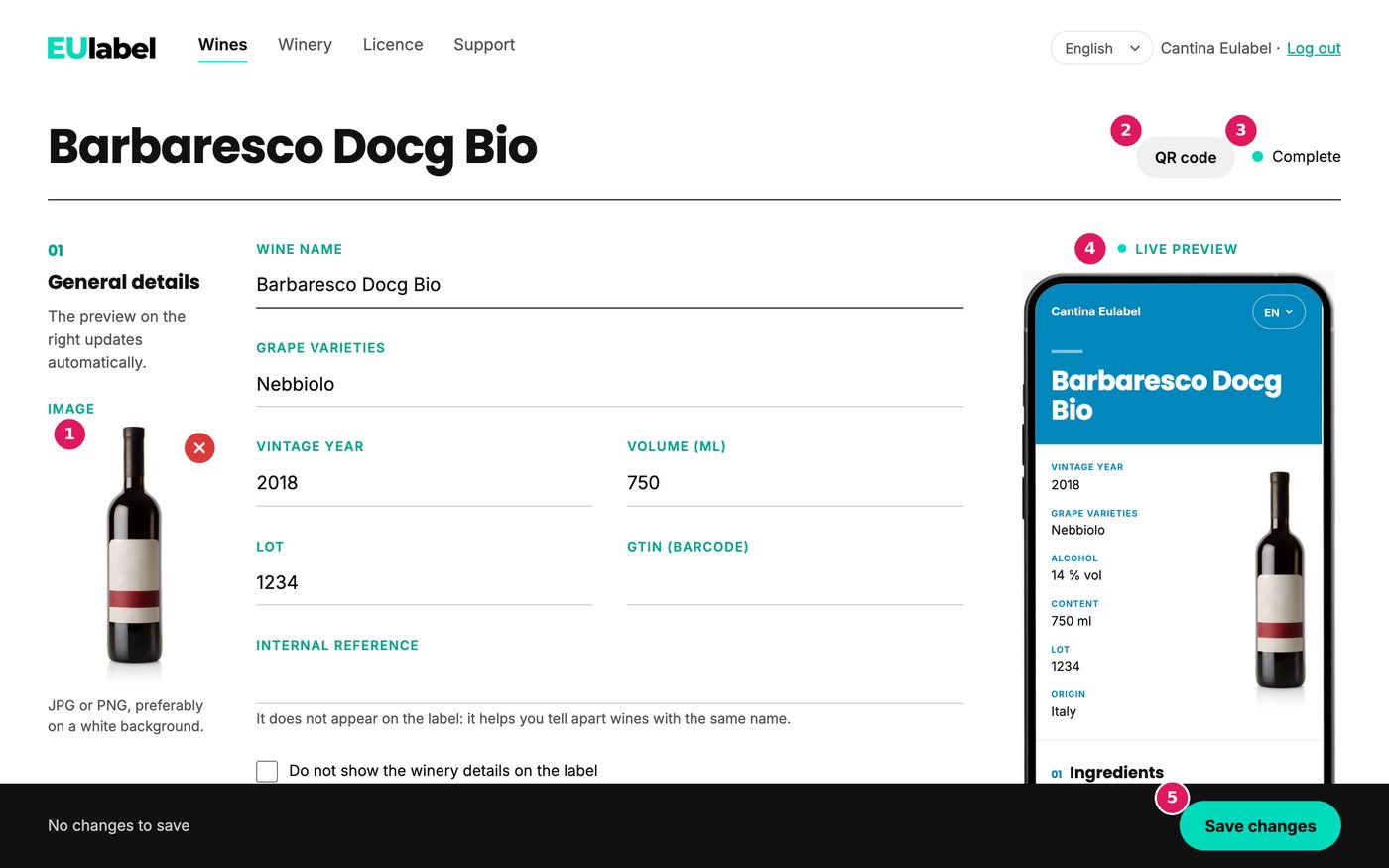
- The bottle photo.
- The wine's QR code.
- The status: Complete or To complete.
- The live preview, as the consumer sees it.
- Save changes: the online label updates immediately.
01General details
| Field | What to enter |
|---|---|
| Image | The bottle photo, as JPG, PNG or WEBP up to 15 MB, ideally on a white background. Click the Upload photo box. Before uploading, Crop the photo opens: the frame starts tall and narrow (1:2, the shape of a bottle) and you can move it and resize it from the corners. Press Use this photo. To change it, click the photo; to remove it, use the red X. |
| Wine name | Required. It is the title of the label. |
| Grape varieties | For example “Sangiovese 90%, Merlot 10%”. |
| Vintage year | The harvest year. Leave it empty for a non-vintage wine. |
| Volume (ml) | Just the number, for example 750. |
| Lot | Optional. |
| GTIN (barcode) | Optional, 8 to 14 digits. If you enter it, it also becomes part of the QR code address (see chapter 6). |
| Internal reference | Not shown on the label. It helps you tell apart wines with the same name, for example two bottle sizes or two lots. |
02Ingredients
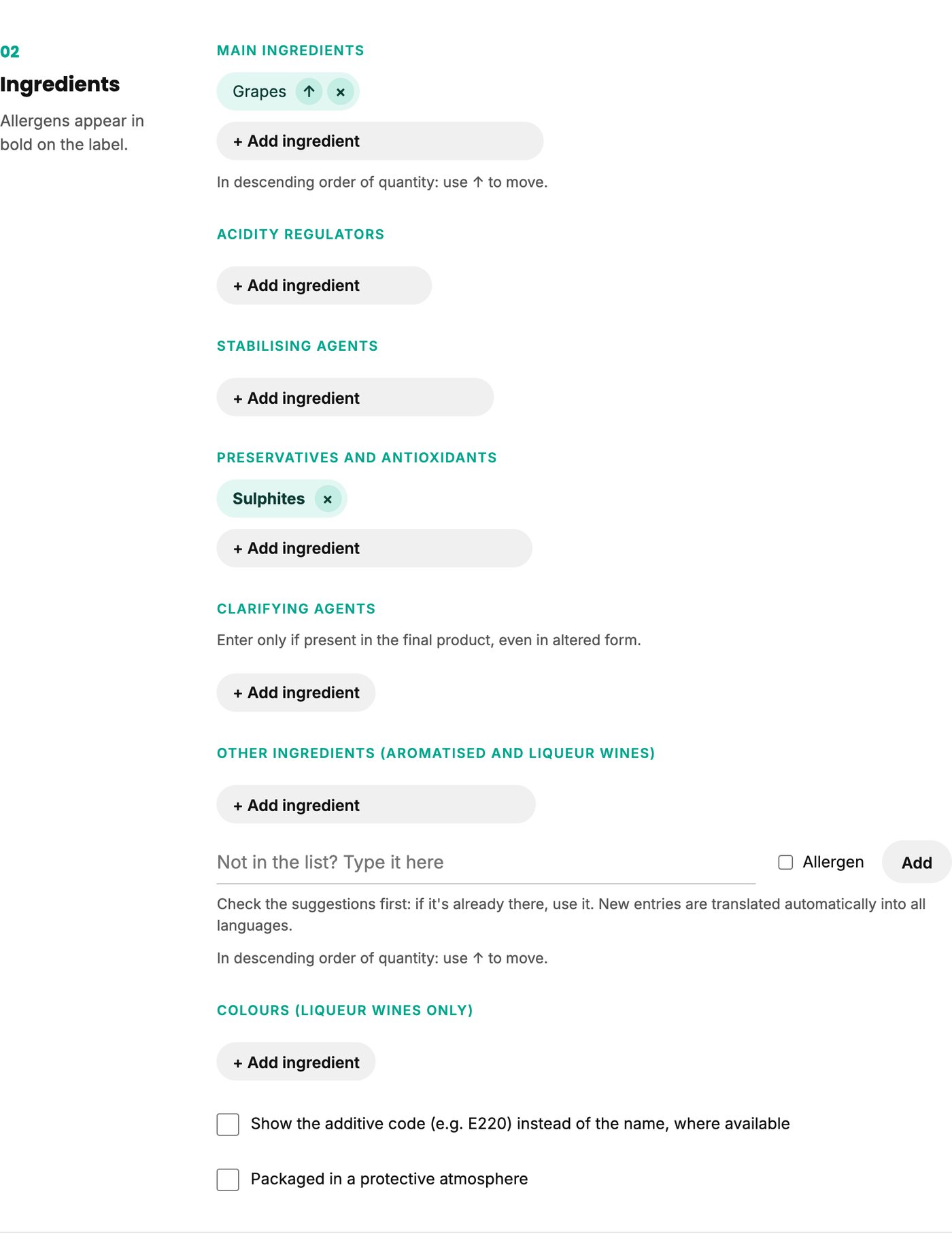
Ingredients are split into lists. In each list, pick entries from the + Add ingredient menu; added entries appear as tags you can remove with the ×.
- Main ingredients (for example grapes, rectified concentrated grape must)
- Acidity regulators
- Stabilising agents
- Preservatives and antioxidants
- Colours (liqueur wines only), colours: caramel (E150), allowed only in liqueur wines. On the label it reads “colour: caramel”, or “colour: E150” if you use additive codes
- Clarifying agents: enter them only if present in the final product, even in altered form
- Other ingredients (aromatised and liqueur wines)
In the Main ingredients and Other ingredients lists the order matters: entries go in descending order of quantity. Use the ↑ arrow to move an entry up. In the other lists the order is automatic.
An ingredient that is not in the list
Every aromatised or liqueur wine recipe is different. If an ingredient is not in the Other ingredients list, type it in the Not in the list? Type it here field. Tick Allergen if it is one, so it appears in bold on the label.
- As you type, the panel suggests existing entries similar to yours, even with a typo. If you find it, choose that one.
- If an identical entry already exists, that one is used and no duplicate is created. If it is very close to an existing entry, the panel asks “Did you mean: …?”.
- The new entry is translated automatically into all the label languages and appears straight away.
Allergens (for example sulphites) are recognised automatically and appear in bold on the label, as the rules require.
Two options at the bottom of the section
- Show the additive code (e.g. E220) instead of the name, where available.
- Packaged in a protective atmosphere: adds this statement to the label.
03Nutrition values
The panel calculates the values per 100 ml from your analysis data, using the factors of EU Regulation 1169/2011. Enter:
- Actual alcohol (% vol)
- Residual sugars (g/l)
- Total acidity (g/l)
- Glycerol (g/l): if you know it from the analysis, enter it. If you leave it empty, the panel uses an estimate based on the alcohol, shown in grey inside the field. You can also enter 0.
As you type, energy in kJ and kcal, carbohydrates and sugars fill in. Fat, saturates, protein and salt you enter yourself (for wine they are usually 0). All calculated values can be corrected by hand. You can use a comma or a point for decimals.
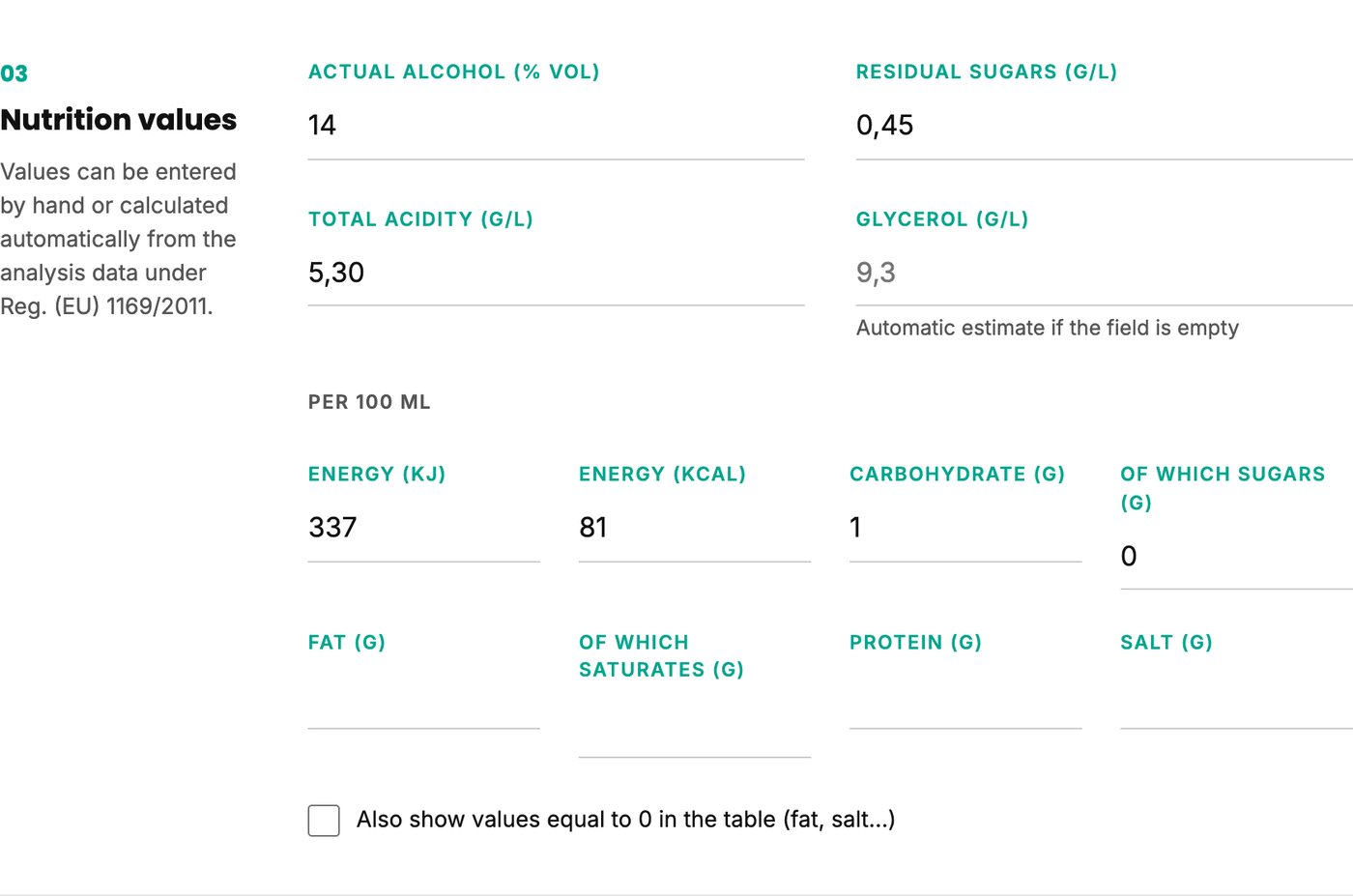
How it is calculated: alcohol in grams (% vol × 0.789) counts 7 kcal per gram, sugars 4, acids 3 and glycerol 2.4. Glycerol is also counted in carbohydrates.
The option Also show values equal to 0 in the table (fat, salt…) decides whether the label also lists rows with a value of 0, such as fat and salt.
04Packaging
Here you say what the packaging is made of, so the label explains how to dispose of it.
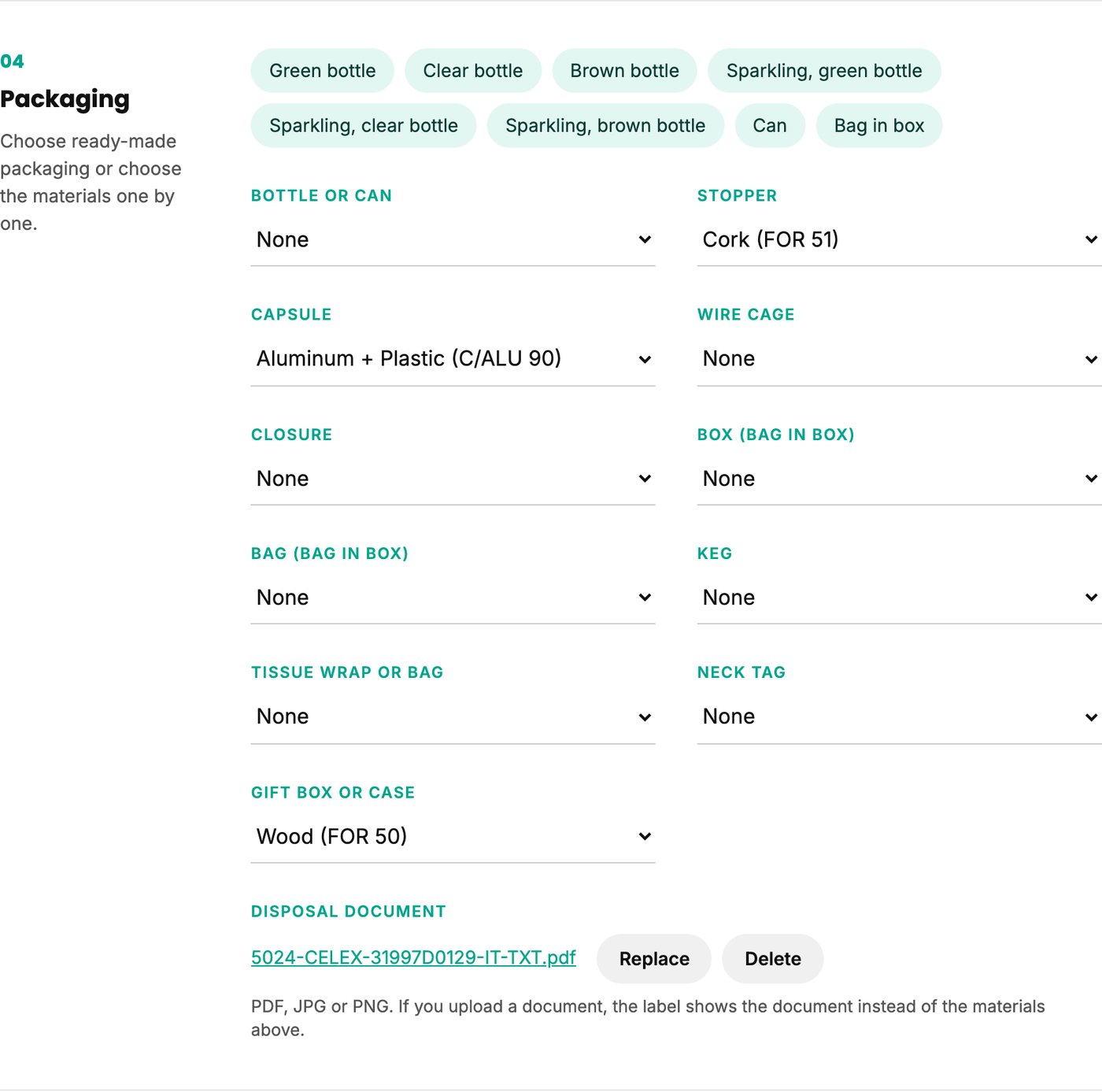
- To save time, press a ready-made package: Green bottle Clear bottle Brown bottle Sparkling, green bottle Sparkling, clear bottle Sparkling, brown bottle Can Bag in box. It fills in bottle, capsule, stopper (and wire cage for sparkling wines).
- Correct or complete the single components: Bottle or can, Stopper, Capsule, Wire cage, Closure, Box (bag in box), Bag (bag in box), Keg, Tissue wrap or bag, Neck tag, Gift box or case. For each one, choose the material from the menu, grouped by type (paper, glass, aluminium, wood and cork, plastic, composites…), or Returnable bottle or None.
Disposal document
If you already have a document with disposal instructions, upload it with Upload document (PDF, JPG or PNG up to 15 MB). The label then shows the document instead of the materials chosen above. You can replace or delete it at any time.
Certifications
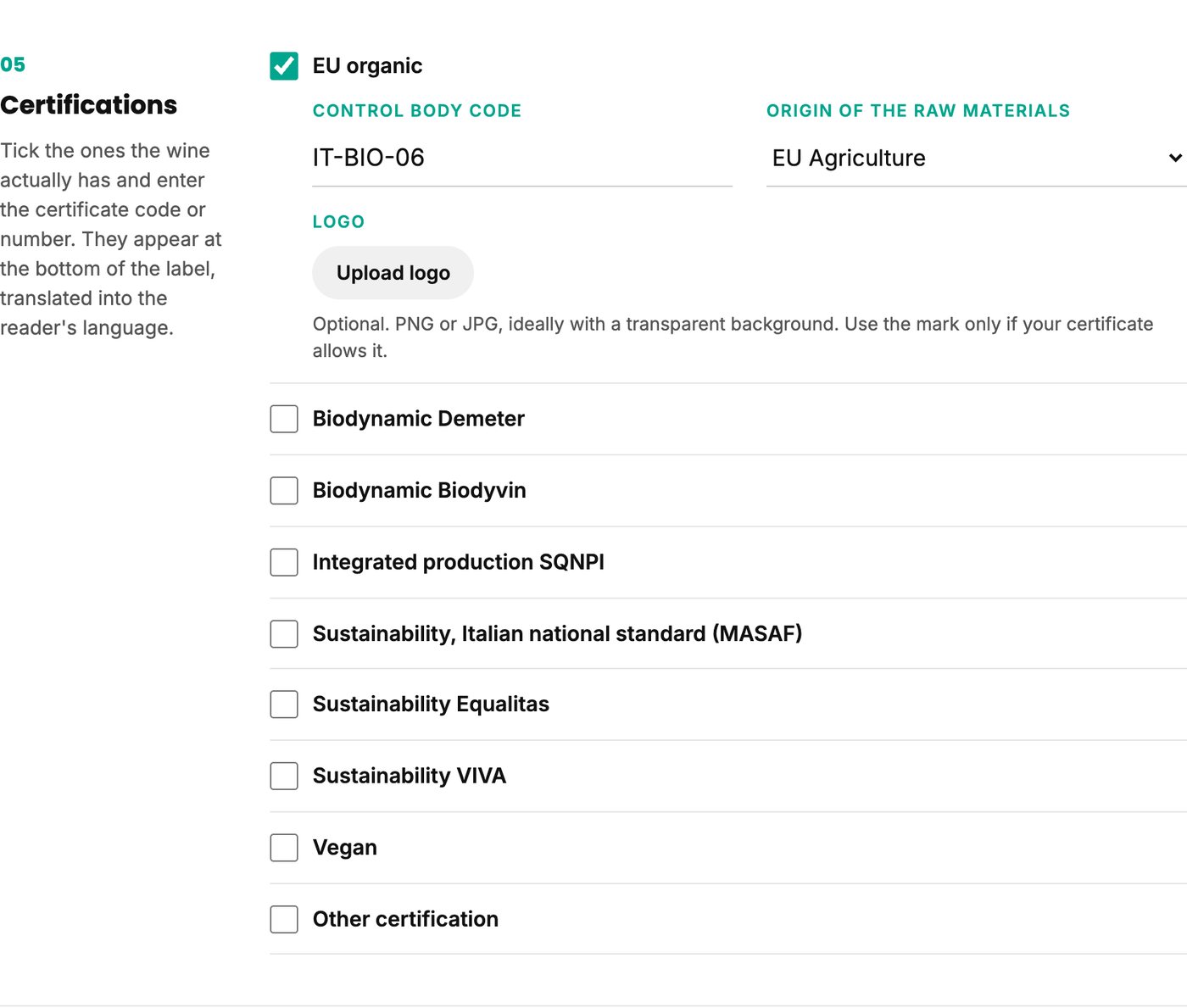
Section 05 Certifications of the wine sheet shows the wine's certifications on the label. They appear at the bottom of the label, under the heading “Certifications”, translated into the reader's language.
Tick only the ones the wine really has:
| Certification | What to fill in |
|---|---|
| EU organic | Required: the Control body code (for example IT-BIO-006) and the Origin of the raw materials: EU Agriculture, non-EU Agriculture or EU/non-EU Agriculture. |
| Biodynamic Demeter | Optional: the Certificate code or number. |
| Biodynamic Biodyvin | |
| Integrated production SQNPI | |
| Sustainability, Italian national standard (MASAF) | |
| Sustainability Equalitas | |
| Sustainability VIVA | |
| Vegan | |
| Other certification | Required: the Certification name. The code or number is optional. |
The logo
For each ticked certification you can upload its logo with Upload logo: PNG, JPG or WEBP up to 5 MB, ideally with a transparent background. You see it in the preview straight away; it is attached to the wine when you press Save changes and appears on the label next to the certification name. Use Remove to take it off.
For EU organic the logo is already there: the label automatically shows the EU organic logo (the EU leaf) without uploading anything. If you wish, you can replace it with another logo, but always an official logo you are authorised to use. If you remove the uploaded logo, the EU leaf comes back.
Certifications are copied when you duplicate a wine, and every change is recorded in the History.
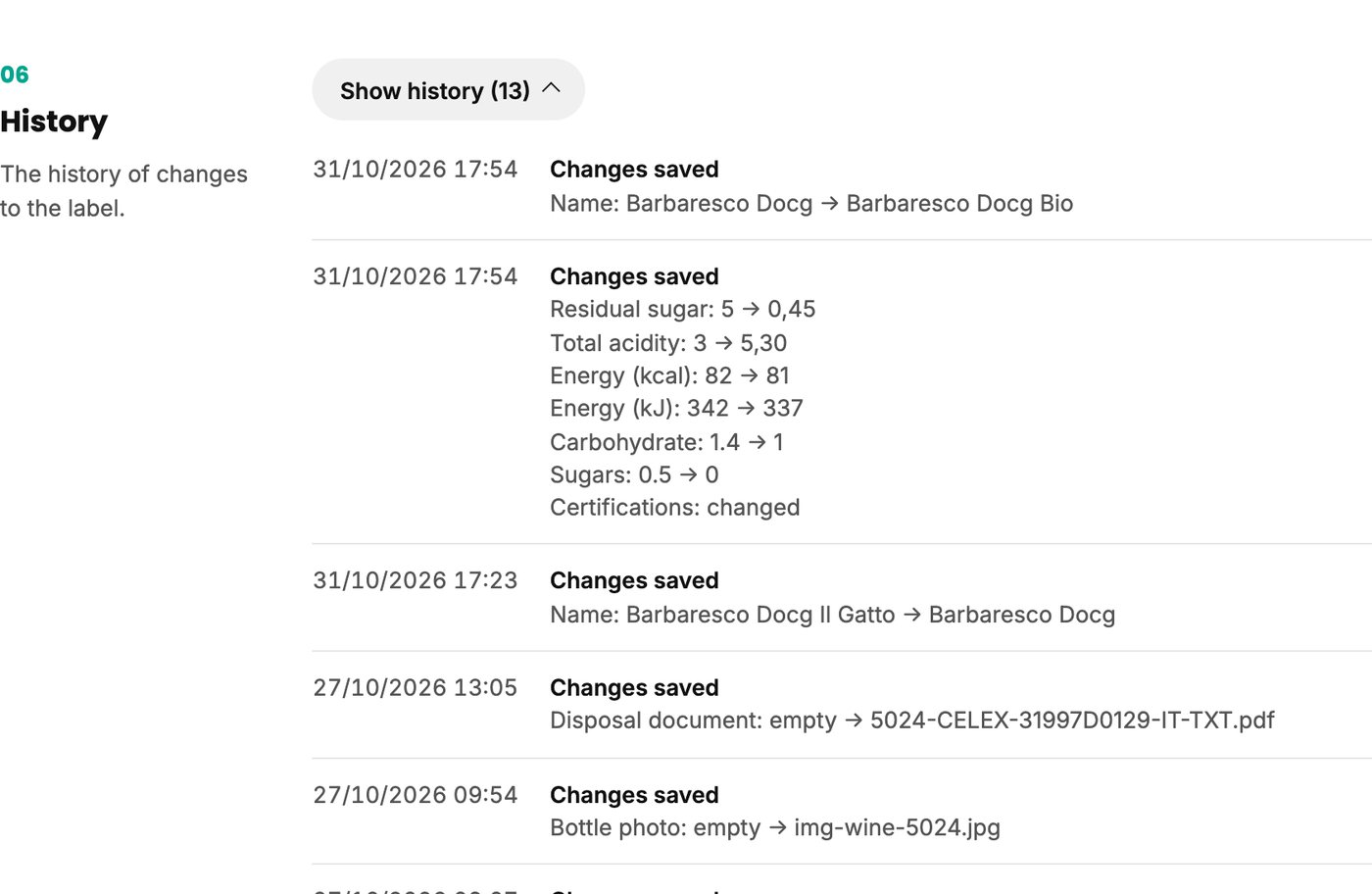
06History
The last section of the sheet shows the change history of the label: when the wine was created or copied and, for every save, which fields changed, with the old and the new value. Changes made with the old panel are not shown.
To keep the page short, the history is closed: press Show history to open it. The number in brackets on the button tells you how many changes there are.
The QR code
Every wine has its own QR code. Open it from the QR icon in the wine list or from the QR code button at the top of the wine sheet. The window shows the code, the address it leads to and three buttons to download it:
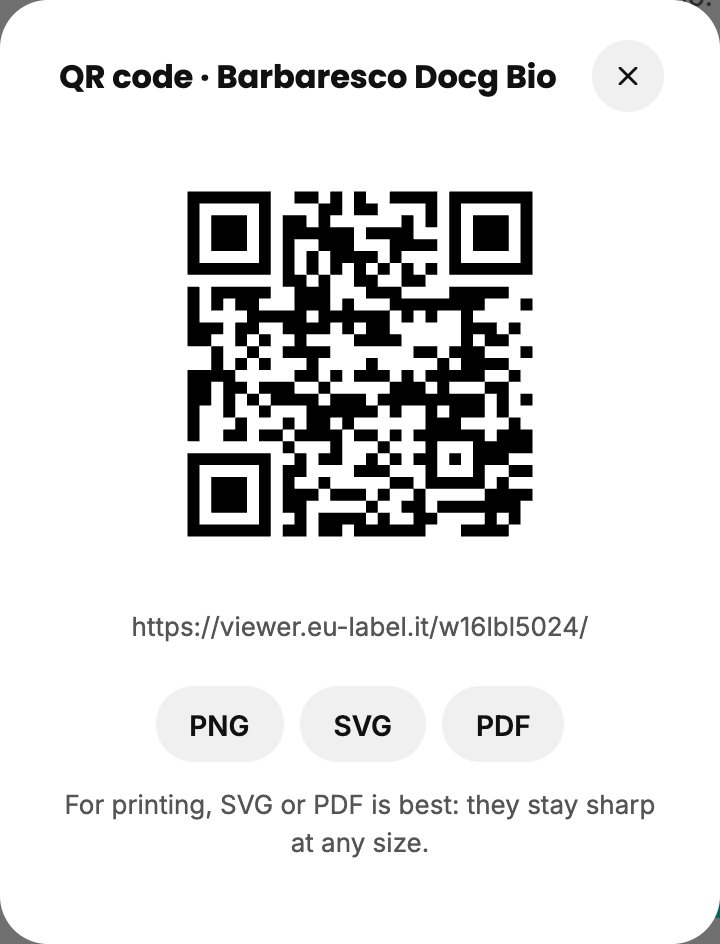
- SVG and PDF: recommended for printing, they stay sharp at any size.
- PNG: an image, handy for previews or documents.
The file is named after the wine and its vintage, for example qr-rosso-di-montalcino-2022.svg. The QR is black on a white background, so it stays readable even on a coloured label.
Print it once
The QR code address never changes. When you correct something in the sheet, anyone scanning the bottle sees the updated version straight away, with no reprinting.
If the wine has a GTIN, the panel adds it at the end of the address, in the GS1 standard format (…/01/8001234567890). So enter the GTIN before downloading the QR for printing: if you add or change it later, the printed QR keeps working but does not contain the new GTIN.
The QR code does not replace the mandatory information on the printed label: energy value, allergens and any environmental marks required in the country of sale (see the notice at the start of this guide).
Winery details
From the Winery menu you edit the details that apply to all your wines. Here too there is a live preview on the right, using your latest wine.
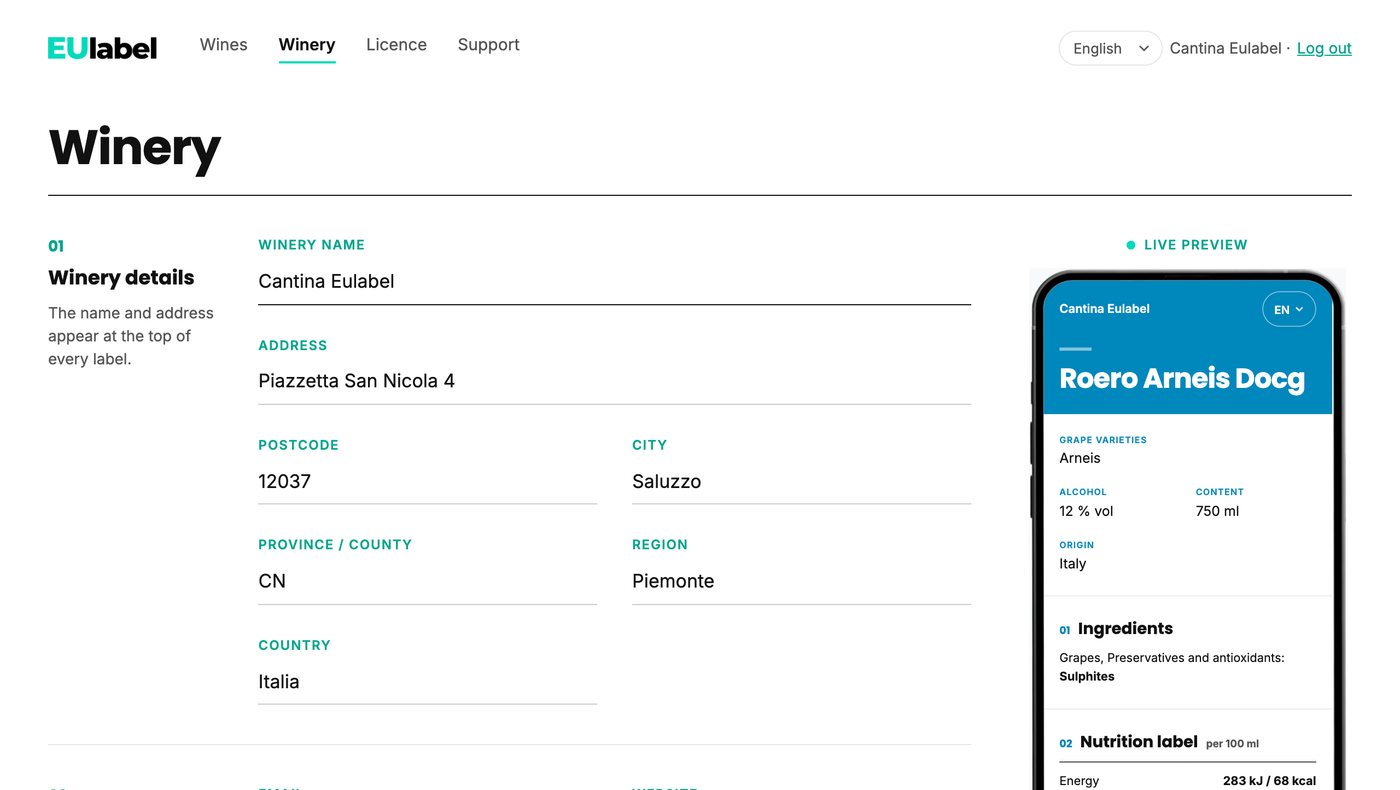
01Winery details
Winery name (required), Address, Postcode, City, Province / county, Region and Country (required). The name and address appear at the top of every label.
02Contacts
Email and Website. EUlabel uses them to write to you; they do not appear on the label. Order confirmations are sent to this email.
03Label
- Colour: the colour of the label header and headings. Pick it from the palette or type its code (for example
#7A1F3D). - Additive codes and values equal to 0 in the table: the same options as in the wine sheet, here as the default.
Licence and payments
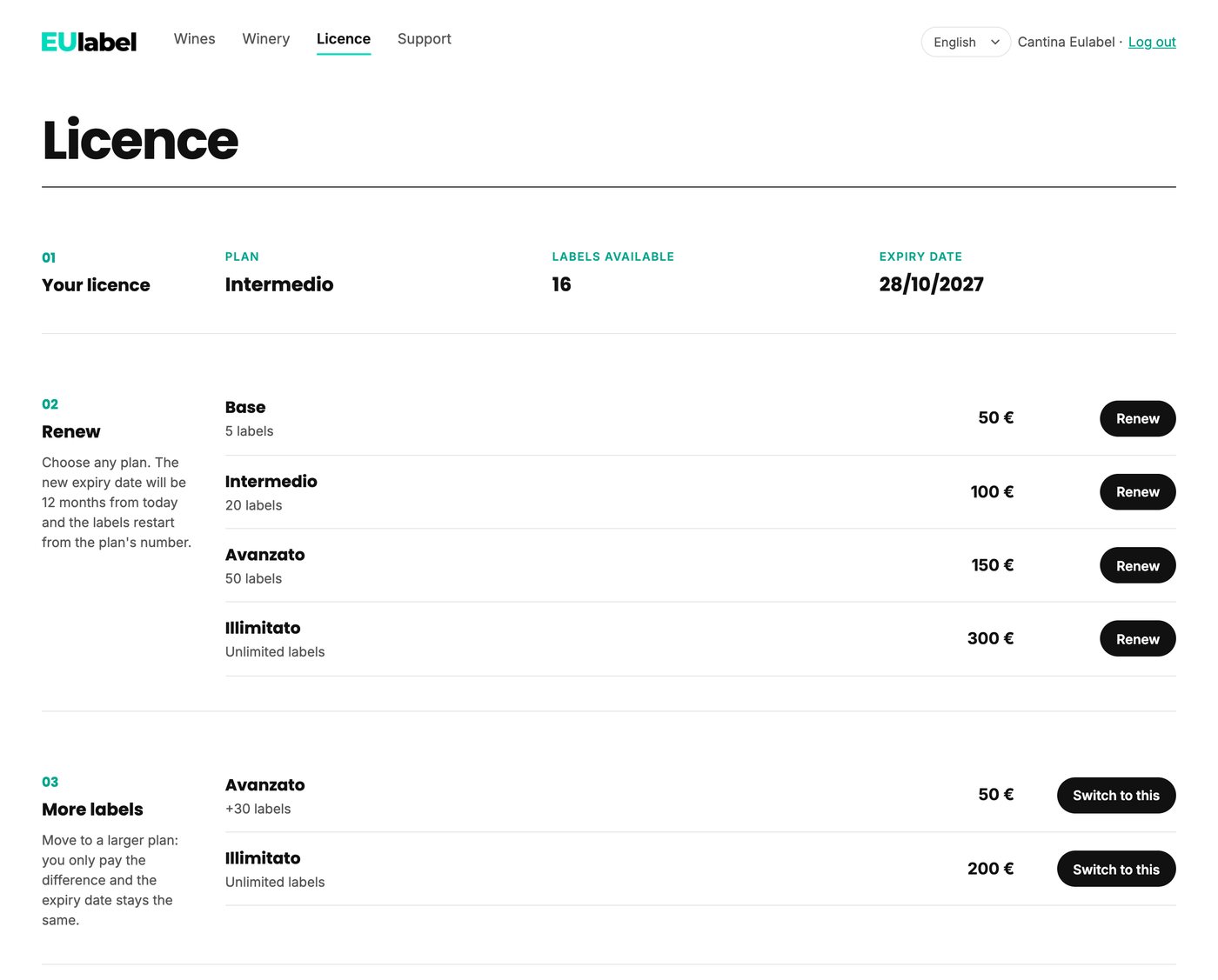
The Licence page shows your Plan, the Labels available and the Expiry date. Each wine you create uses one label; deleting a wine gives the label back.
Renewing
In the Renew section (called Choose a plan during the trial) you can choose any plan. The new expiry date will be 12 months from today and the labels restart from the plan's number.
More labels
In the More labels section you move to a bigger plan. You only pay the price difference, you get the extra labels and the expiry date stays the same. If the licence has expired, you need to renew first.
How to pay
After choosing the plan you see the summary (plan, labels, expiry date, total) and the payment methods:
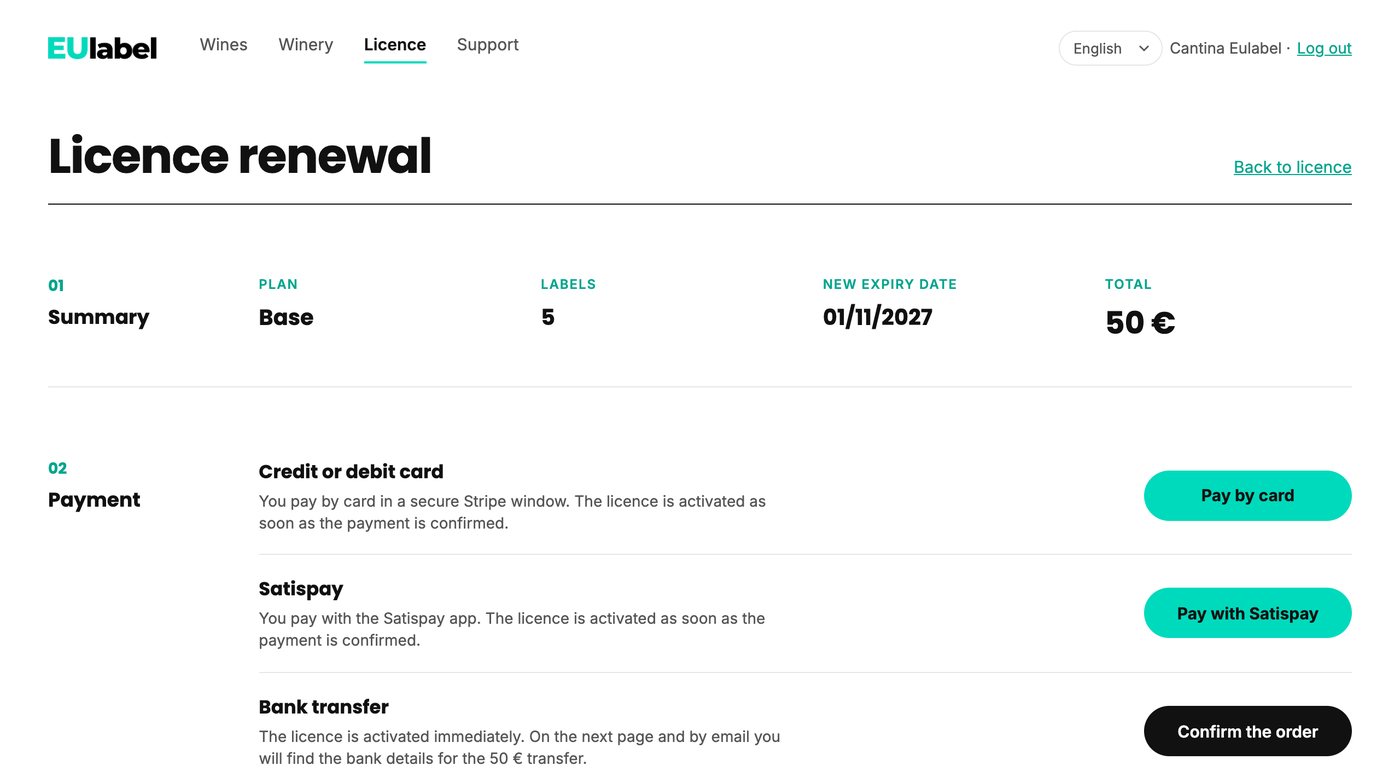
| Method | How it works | When the licence activates |
|---|---|---|
| Credit or debit card | You pay in a secure Stripe window. Apple Pay and Google Pay also work if your device supports them. | As soon as the payment is confirmed. |
| Satispay | You pay with the Satispay app. | As soon as the payment is confirmed. |
| Bank transfer | Press Confirm the order. On the order page and by email you find the account holder, IBAN, payment reference and amount. | Immediately, even before the transfer. |
For a bank transfer, send the payment receipt to info@eu-label.it. You receive an order confirmation by email; EUlabel sends the invoice.
Orders
At the bottom of the Licence page is the list of orders, each with its status:
- Paid: all done, the licence is active.
- To be paid: a bank transfer not yet recorded. The licence is already active.
- Waiting: a card or Satispay payment started but not completed. The licence has not changed. You can press Pay now to try again or Cancel.
If you have paid but the order is still waiting, open the order and press check again.
When the licence expires
Labels already published stay visible and the QR codes keep working. You can still edit your wines, but you cannot create or duplicate new ones until you renew. For the free trial the rule in chapter 2 applies instead: when the trial ends, the label page is suspended.
Frequently asked questions
- I made a mistake and the bottles are already printed. What do I do?
- Correct it in the sheet and save. The QR code stays the same and leads straight to the corrected version.
- New vintage of the same wine: do I have to start again?
- No. In the list press Duplicate on last year's wine, then change the vintage and the analysis values. The copy has a new QR code and uses one label of your licence. If you want to keep the same QR code, edit the existing wine instead.
- Why is the wine “To complete” if the label is already visible?
- The label is always online. “To complete” reminds you that data required by the rules is missing: name, ingredients or energy values.
- I can't see the “New wine” button.
- Your licence has expired or you have used all the labels of your plan. Go to Licence to renew or move to a bigger plan, or delete a wine you no longer use.
- In which language does the consumer see the label?
- In the language of their phone. The panel language only applies to you.
- Which photo should I upload?
- A photo of the whole bottle, ideally on a white background, as JPG or PNG. The crop already starts in the right proportion.
- Can I use the panel on my phone?
- Yes, the panel also works on tablets and phones. For working on many wines a computer is still more comfortable.
- Who can I ask for help?
- From the Support menu, Contact section: choose the Topic (Using the panel, Label and QR code, Licence and payments, Other), write your Message and press Send message. We reply by email to the address in the We'll reply to field, already filled in with the winery's email. You can also write directly to info@eu-label.it.